
ASUS ROG Xbox Ally X: Full Setup, Updates, and Game Library Guide
Highlights key setup tips and optimization methods that enhance battery life, stability, and performance on the Ally X.
Hardware by Tanisha Aria on Oct 21, 2025
ASUS ROG Xbox Ally X is a portable version of a full Windows gaming experience. If you set it up right, it will run smoothly, get updates faster, and let you easily access your game library.
Unboxing, setting up the system, updating it, and organizing your game platforms, such as Xbox and Steam, are all important parts of the process.
.jpg)
Inside the ROG Xbox Ally X
Let's open the box for the new ASUS ROG Xbox Ally X. The console is wrapped in plastic inside. There is a small secret compartment inside the top cover that holds a cardboard stand. This is very useful for holding the device up while you set it up. There is also a small card that tells you the two main steps to get started: plug it in and turn it on.
The charging brick is under the console. You need to use it because it gives off 45 to 65 watts, which is perfect for this device. When you can, it's best to use the charger that came with it. There are also the usual papers, such as the guarantee card and an overview guide.
For the rest of the process, we suggest putting the device on the stand that came with it. You can also use ASUS accessories like the ROG Bullwark dock or the premium case, which work just as well.
Powering On for the First Time
First, plug the included charging brick into the USB-C port on the console that is closer to the center top. After that, hit the button that says "power." The system will start booting right away and show the Windows setup process that you know.
Initial Windows Setup
On the first few screens, you will be asked to pick your region and connect to Wi-Fi. You must also name your device and agree to the terms of the licensing. Make sure the name is simple and easy to remember.
Don't put in any unnecessary spaces or symbols. The system might restart and start downloading Windows updates on its own after this step.
The usual steps for installing these updates are downloading, installing, and then restarting. When you're done, you can sign in with your Microsoft account. At this point, connecting a keyboard might make typing easier.
You can then choose to turn on fingerprint login. This step is not required, but if you want to do it, it's easier to use your index finger or thumb. To register the fingerprint, press the power button several times until the fingerprint icon fills.
Then you'll need to create a PIN, which can be a simple 4-digit number or a standard password. After that, there will be prompts for diagnostic data, location services, and stylus setup that you can choose to ignore.
Finally, you'll see the option to register your device with ASUS. It's up to you whether or not you want to do this. After that, the system will start up in Windows, where you can install apps and updates.
.jpg)
Signing in to the Xbox App
When you reach the main screen, you'll need to log in to your Microsoft account again. This should already be linked from before. To continue, just choose your account. The Xbox app will open after this, and you will be able to see your game library and subscriptions.
Updating Armoury Crate and Other Important Apps
We suggest updating three things before you start playing: Windows, the Xbox app, and Armoury Crate.
To begin, press the Xbox button and go to the Armoury Crate icon. To install it, just follow the instructions. To get important hardware and driver updates for your device, open the Update Center in Armoury Crate. This will also update the app, which is important for setting it up in the future.
Next, check whether the Xbox app and other system apps are up to date. You might get a notification for this, but you can also check it yourself by switching to Windows Desktop mode.
Press and hold the Xbox button, then use the search bar to find the Microsoft Store. Click on "Check for updates" in the Downloads section. This makes sure that your Xbox app, Gaming Services, and other important apps are up to date.
Finally, go back to the Windows Update menu one last time to see if there are any more updates for your system. After all the updates are done, it's always a good idea to restart to make sure everything works right.
Installing Xbox Games
Installing your games is the fun part now. For example, open the Xbox app and look for Gears of War: Reloaded. Once you find it, you'll see details on how well the game runs on the handheld, whether it's designed for portable play, and whether it supports Xbox Play Anywhere.
Some titles may say "mostly compatible," which usually means that the game might have small text or be hard to read on the smaller screen. You can still install and play those games without any problems, though.
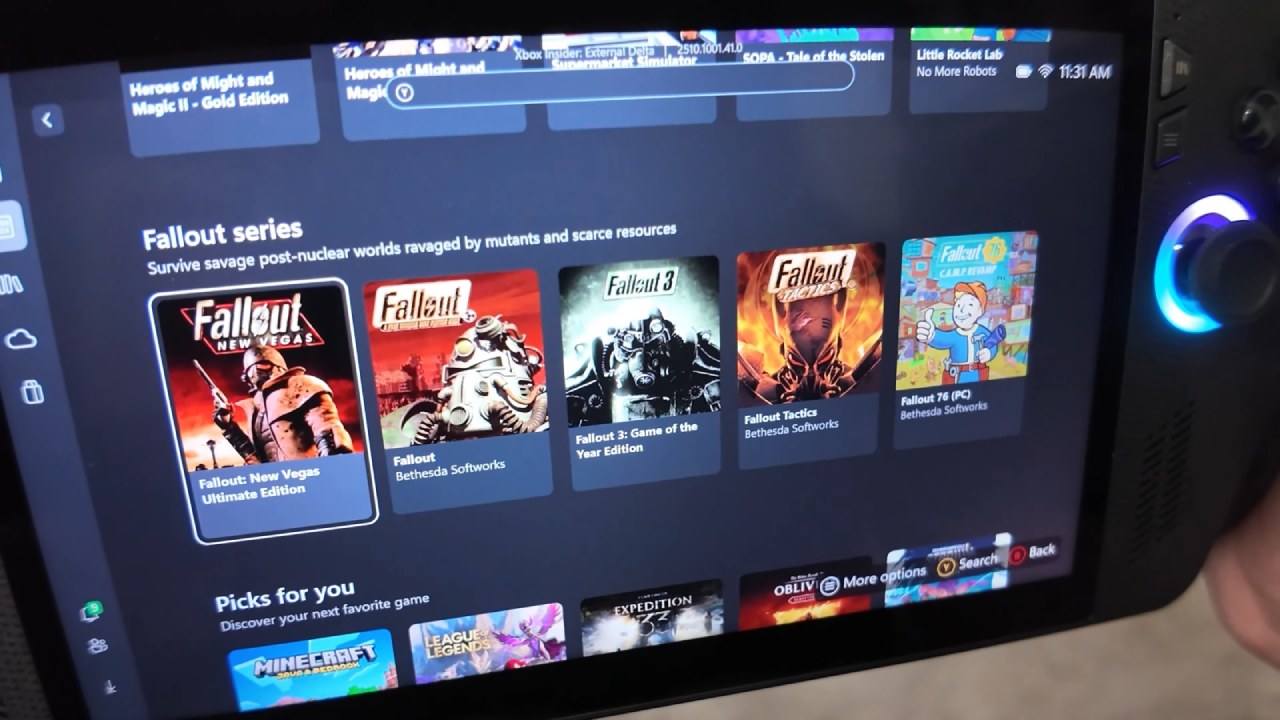
Linking Steam Games
The ROG Xbox Ally X runs Windows, so it works with other platforms too. You can find Steam, Epic Games Launcher, Ubisoft Connect, and more in your apps library. Most of the time, Steam is already installed. Press the Xbox button, then select the Steam icon to open it.
Updates will be automatically checked by Steam. When it's ready, sign in to your account and install any games you have, like Hades II. You can even start Steam games right from the Xbox app after you install it. This keeps all of your games in one place.
Also, check our other ROG Xbox Ally articles below:
- ROG Xbox Ally X vs. Original Ally: Real-World FPS and Power Efficiency
- Next-Gen Xbox or No Console: Understanding the Impact on Games and Gamers
- Inside the ASUS ROG Xbox Ally: Power, Portability, and PC Gaming Without Limits
- ASUS ROG Xbox Ally Review: Ergonomics and Windows 11 Full-Screen Experience in 2025
- ASUS ROG Xbox Ally X Hands-on: Ryzen Z2 Extreme Power and Full-Screen Windows Experience
- Xbox Magnus: Next Generation Console with AI Power and PC Hybrid Design
- ROG Ally X Gets Xbox-Like Features with Latest Armoury Crate Update
- Future of Xbox: Cloud Gaming, Game Pass, and Hardware Exit Plans
- Xbox Series X vs. Xbox One X: Which Console Is Best for Backward Compatibility in 2025
- Xbox Full Screen Experience on the Lenovo Legion Go
Contributor, NoobFeed
Gaming Hardware Updates
No Data.