
From Daily Grinds to Raid Nights: Building a Better PC Setup for Mobile-First Games
Other by Tess Meijer on Aug 22, 2026
Mobile games are no longer designed solely for small screens and touch controls. The most popular mobile games in 2026 are survival strategy games, action RPGs, MOBA titles, and long-running gacha games.
Players spend hours every day on content that demands sustained concentration, precise inputs, and the kind of extended-session comfort you can't get from holding a phone for a two-hour raid or a daily grind session across multiple content types. To set up a PC system that supports mobile-first gaming, you need to understand both the hardware and software involved in making the transition work.
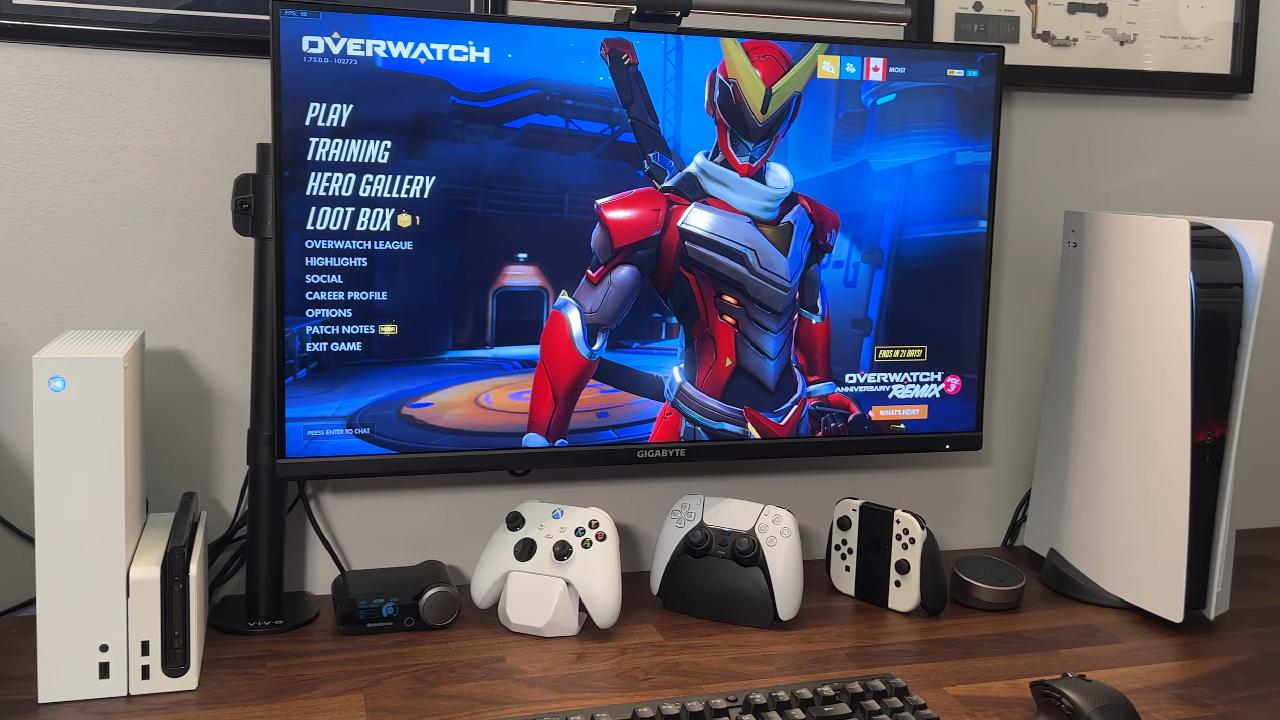
Why Mobile-First Games Benefit from PC Play
The patterns of play that are at the heart of most successful mobile games are built with short sessions in mind—yet in practice players have frequently exceeded the expectations set by these designs.
Mobile games that reward daily logins, feature resource-management cycles, use construction timers, and schedule alliance events draw in players who end up spending far more time than the original short-session design anticipated.
As actual usage amounts to one or two hours per day, the ergonomic problems associated with mobile hardware—such as small screens, thermal throttling after prolonged use, inaccurate touch input, and battery drain—stop being minor inconveniences and become real quality-of-life problems.
PC gaming gets around these constraints by offering more screen real estate on a desktop monitor, which helps reduce the eye strain of reading complex resource-management interfaces on a six-inch screen for long periods. With the right chair and workstation setup, you can eliminate the physical discomfort of holding a phone for more than an hour.
Touch controls can never match the accuracy and speed of a mouse and keyboard, which is vital in time-sensitive situations such as raid dynamics or competitive PvP.
Android Emulator Introduction
An Android emulator combines PC hardware with mobile game libraries. Among the options available, LDPlayer is the best for gaming. LDPlayer is a mobile game emulator; however, a general emulator may run mobile apps. General-purpose emulators give full app compatibility. The emulator is built to suck resources into the graphics rendering pipeline and handle gaming inputs, not to run enterprise programs.
One of LDPlayer's main advantages is that it lets you run several game instances at the same time. It's useful if you want to play more than one game without switching gears or manage multiple accounts in the same game.
The multi-instance feature lets you run your main game account in one window while using a second account for resource generation in another—a scenario the mobile gaming community has developed specific account-management methods for, and the emulator's architecture supports it.
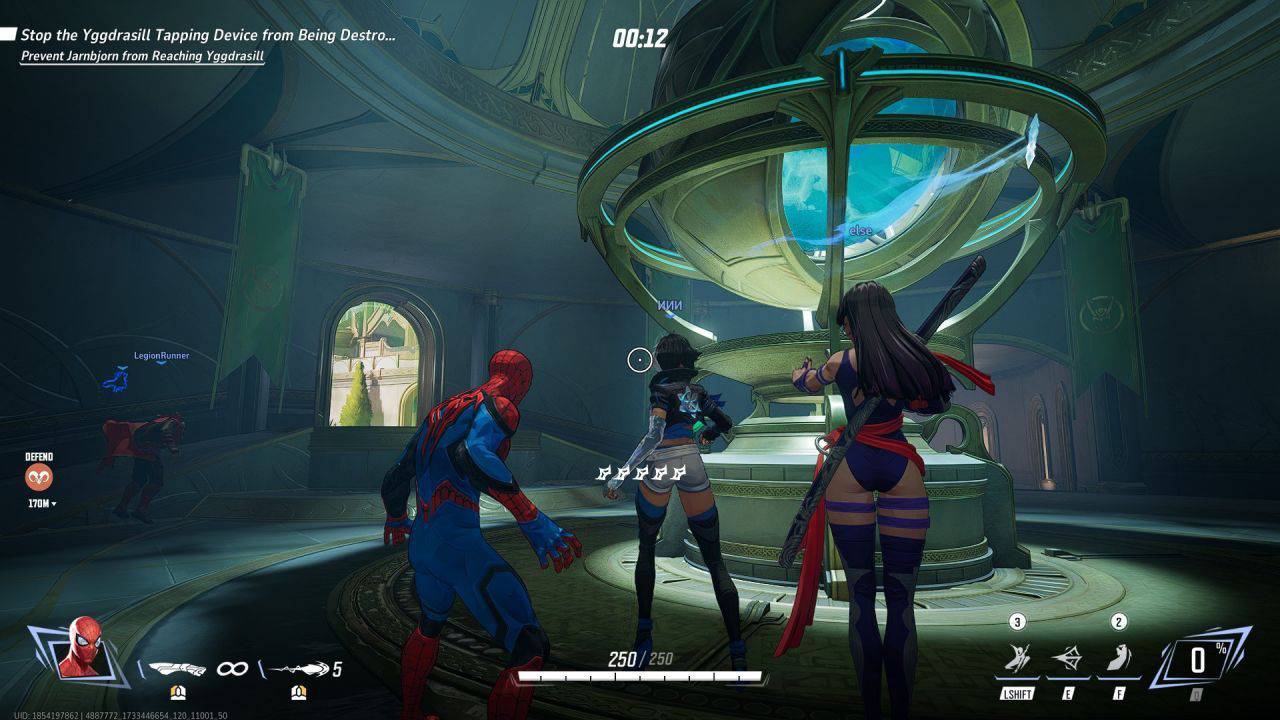
Key Mapping and Control Scheme Setup
The advantages of using a PC rather than a mobile device are clearest in LDPlayer's control scheme settings. The emulator's key mapping lets you assign every kind of touch input—such as joystick movement, ability buttons, and inventory interactions—to keyboard keys or mouse actions. Once you set up and save a control scheme, it stays in place between sessions and can be exported and imported so you can share it with other players or use it as a backup when reinstalling.
In games featuring complex interfaces—for example, strategy games which involve multiple types of resources, various menus, and construction queues; action RPGs that require ability rotations and inventory management; and MOBA games that demand a good understanding of the map—assigning hotkeys to frequently used interface elements greatly improves both the speed and accuracy of interaction.
Actions that would otherwise require several steps of touch navigation on a mobile device can be done with a single keystroke using a set-up keyboard scheme, and this benefit adds up over hundreds of interactions during a long daily session.
Hardware Considerations for the PC Setup
LDPlayer performance depends on the hardware it runs on, and by identifying the components that most affect emulated gaming, you can make sensible upgrade decisions to achieve the best possible configuration.
When people run multiple instances, RAM has the most direct effect; each game instance requires its own amount of RAM, and when there isn't enough available, slowdowns and stutters occur that are more obvious than any other hardware limitation.
How GPUs are assigned directly affects both rendering quality and frame-rate stability, especially in graphics-intensive mobile games that use hardware acceleration within the emulated environment. Players using integrated graphics will achieve adequate performance in most mobile strategy and role-playing games.
In contrast, users with a dedicated GPU can choose higher rendering settings, leading to a noticeable improvement in the visuals of graphically demanding games. Since the CPU's single-core performance affects how quickly the emulator handles game logic, it matters more for smooth gameplay than the number of cores, which matters less in single-instance gaming.
.jpg)
Multi-Instance Play for Daily Grind Optimization
LDPlayer's ability to run multiple instances changes how players manage several accounts each day. Instead of dealing with the accounts one after another, players can manage two to four game instances at the same time, each having its own set of configured control schemes and resource generation cycles.
A player who would take two hours to look after the resources of three accounts in sequence on a mobile device could do the same amount of work in considerably less time by using parallel instance management on a PC.
Games with passive resource generation and periodic resource collection, manageable construction queues, and daily objectives that require little active interaction after the routine is set offer the biggest efficiency gains. Hotkeys, the ability to watch multiple games at once, and enough screen space to monitor multiple windows without switching apps are all available in the Android emulator environment.
Setting Up LDPlayer for the First Time
To configure LDPlayer for PC gaming, complete several setup steps after installation, since they greatly affect the overall experience. After installing LDPlayer but before downloading any games, open the program's settings and allocate the right amount of RAM and CPU cores for your computer.
You can do this in the emulator's performance settings. The default allocation settings are conservative because they are designed to work on the broadest possible range of hardware rather than provide maximum performance.
Moderator, NoobFeed
Latest Articles
No Data.