
Best Handheld and Docked Settings for Resident Evil Requiem on Xbox Ally X
Optimized graphics settings and AMD software adjustments significantly improve Resident Evil Requiem performance on Xbox Ally X in handheld and docked modes.
Hardware by Tanvir Kabbo on Mar 05, 2026
When set up correctly, Resident Evil Requiem works great on the Xbox Ally X. With the right mix of AMD software improvements, in-game graphics changes, and power settings that work best for the game, it can run smoothly in both handheld and docked modes while still looking great.
Even demanding sections of the game remain playable with stable frame rates and sharp visuals when the settings are configured correctly.
.jpg)
Configure AMD Software
The first step is adjusting the AMD software settings before launching the game. Exit to the desktop and open AMD Software. This can be done using a desktop shortcut or by searching for AMD in the system search bar and opening the application.
After opening AMD Software, navigate to the Gaming section and locate Resident Evil Requiem. If the game is already visible on the main panel, simply select it. Otherwise, opening the Gaming tab will allow the game profile to be found and opened.
Scroll down through the settings and enable RIS, which stands for Radeon Image Sharpening. Turn the toggle on and leave the default value set to 80%. No further adjustments are required here. This sharpening feature significantly improves image clarity, especially when running the game at a lower resolution such as 720p.
Set VRAM in Armoury Crate
Next, open Armoury Crate to verify the VRAM allocation. Inside the application, navigate to the Performance section and then enter GPU settings.
The recommended VRAM allocation is between 8GB and 10GB. Running the game with 10GB provides the best balance for graphics features and overall performance. After adjusting this setting, restart the system so the change takes effect.
Once the system restarts, return to the Xbox full-screen experience and launch Resident Evil Requiem.
Display Settings Inside the Game
After the game loads, open the Options menu and navigate to Graphics. Inside the display settings, disable VSync.
Move to the Image tab and set the resolution to 720p. Although this resolution is lower than 1080p, the Radeon Image Sharpening feature enabled earlier makes the image appear much closer to native 1080p. The visual clarity remains surprisingly high while performance improves significantly.
Set the frame rate option to Variable. Motion blur can be adjusted depending on preference. Turning it off provides a clearer image, while leaving it on can add a sense of smoothness to motion.
Ray Tracing and Core Graphics Settings
With 10GB of VRAM available, ray tracing can be enabled at the Normal setting if desired. Using ray tracing in this configuration generally produces around 30fps in outdoor areas and closer to 40fps in indoor environments.
If smoother performance is preferred, ray tracing can be turned off. Disabling it allows the system to maintain higher frame rates while still preserving strong visual quality.
Hair strands should also be turned off. Continue scrolling down and switch the graphics preset to Custom, then open the Advanced Settings menu.
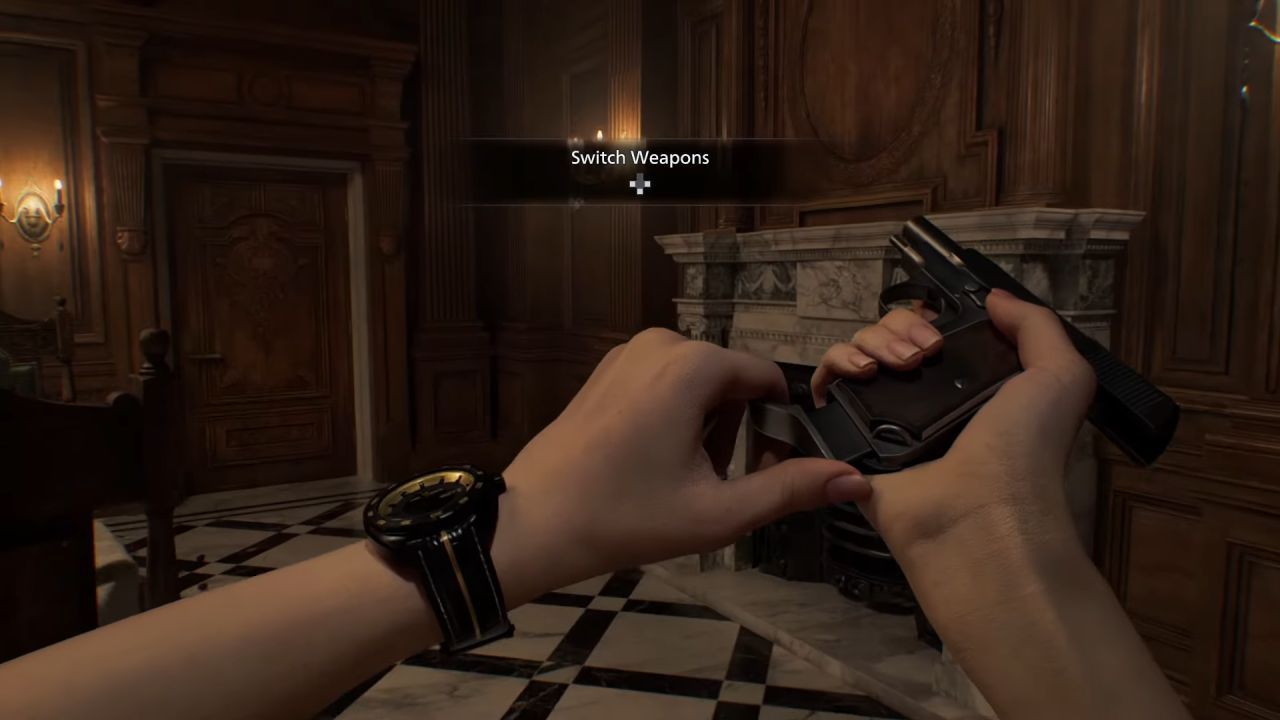
Advanced Graphics Configuration
Inside the advanced graphics settings, several adjustments help maintain performance without heavily impacting visual quality. Texture quality should be set to Normal, while texture filter quality should be set to High*16. Mesh quality should be lowered to Low to reduce GPU load.
Screen space reflections should remain enabled because they noticeably enhance the visual appearance of the environment with only a minor performance cost. Subsurface scattering should be disabled to improve performance.
Lens distortion can remain enabled as it adds a subtle visual character to the image. Depth of field should be turned off because it provides minimal benefit while consuming additional resources.
Upscaling and Frame Generation
For upscaling, Ultra Performance mode works well when ray tracing is enabled. When ray tracing is disabled, switching to Performance mode offers a better balance between visual clarity and frame rate.
The game also includes frame generation. Some players want to use it to make things smoother, while others like to keep it off to keep the frame rate more stable. It depends on what you like; which choice will work?
Remaining Visual Settings
You should set up the remaining graphics options so that performance stays stable. You should keep particle lighting on and turn volumetric fog down to Low. Lens dirt should be disabled, while lens flare can remain set to Standard.
Shadow quality should be lowered to Low, while contact shadows should stay enabled to maintain environmental depth. Ambient occlusion should remain set to Normal because it significantly improves the atmosphere and darker visual tones throughout the game.
VFX quality should be set to Low in order to reduce the performance impact during intense scenes.
Creating a 20W Power Profile
The Armoury Crate should then be opened again to configure a custom power profile. Navigate to the Performance section and select Operating Mode. From the available options, choose Manual mode.
Adjust the power sliders so the values are set to 20W, 23W, and 28W. After applying these values, open the menu using the three dots and rename the profile to 20W.
Once saved, the available performance modes will include Silent 13W, Performance 17W, Turbo 25W, and the newly created Manual 20W mode. CPU Boost can also be disabled to improve efficiency and battery balance.
The 20W profile is an excellent middle ground between the 17W and 25W modes. It gives you more performance without using up too much power.
Handheld Performance Results
Resident Evil Requiem runs quite well in handheld mode when the 20W power profile is on, and the graphical settings are set as recommended.
During the demanding opening section of the game, frame rates typically reach between 55fps and 60fps without using frame generation. This section is one of the heaviest parts of the game, yet the system maintains smooth gameplay due to the 720p resolution and Radeon Image Sharpening.
After moving beyond the most demanding areas, frame rates can climb to around 70fps to 75fps. Indoor environments, which make up a large portion of the game, often reach around 70fps to 80fps.
Further into the game, performance generally stays between 63fps and 70fps, which still provides a very smooth experience.
Comparing 20W and 25W Modes
Switching from the 20W profile to the Turbo 25W mode increases GPU power usage, but the frame rate difference is minimal. In many situations, the same area still runs around 63fps even with the additional power draw.
Because of this, the 20W profile remains the preferred option. It delivers almost identical performance while offering better battery efficiency during handheld gameplay.
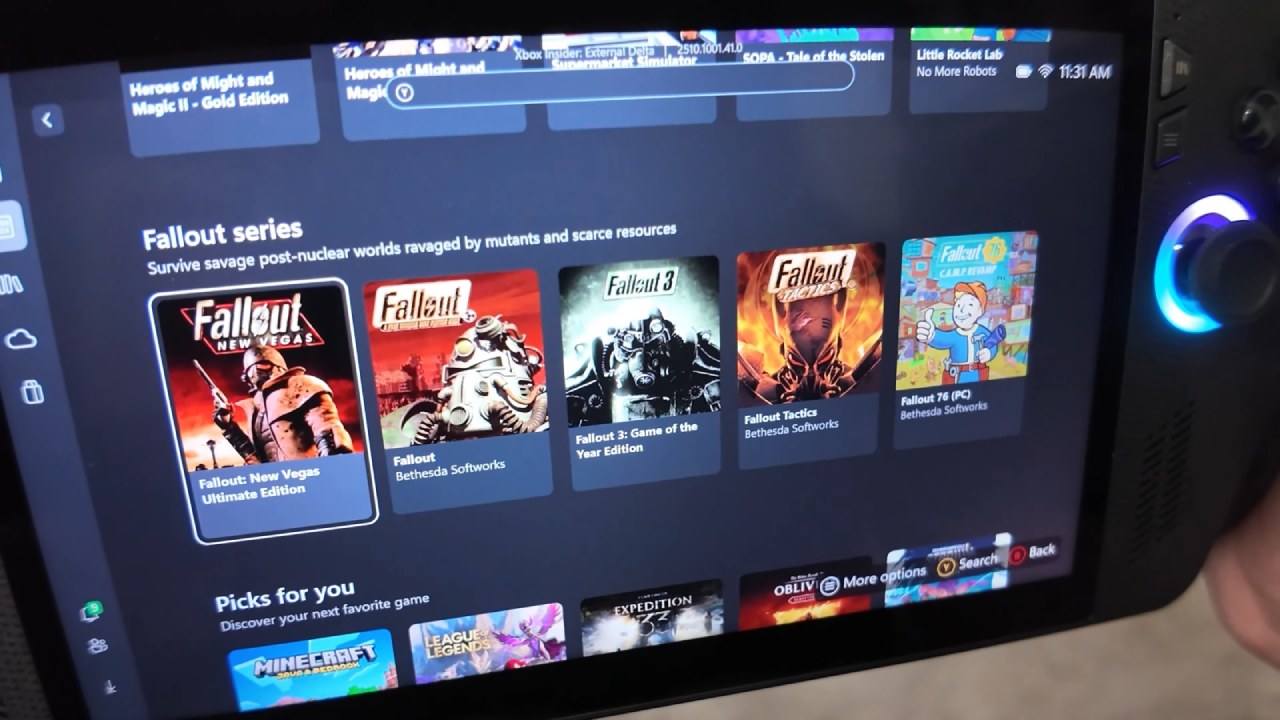
Docked Mode Performance
Docked gameplay also performs well using nearly the same graphics settings. When connected to power with a 100W charger, the system can boost up to a 35W power profile.
In docked mode, ray tracing can be enabled at Normal or Low while switching the upscaling mode to Ultra Performance.
During the demanding introduction section, frame rates remain above 30fps even with ray tracing enabled. If the display does not support VRR, enabling VSync helps prevent screen tearing when frame rates fluctuate.
Despite running at 720p with aggressive upscaling, the image still appears sharp on a larger display thanks to the Radeon Image Sharpening feature.
In more typical gameplay areas, frame rates can reach around 50fps with ray tracing enabled. Disabling ray tracing and switching upscaling back to Performance mode can increase performance even further.
Final Experience
Resident Evil Requiem delivers an impressive experience on the Xbox Ally X when configured properly. Running the game at 720p with Radeon Image Sharpening and using a 20W handheld power profile creates a strong balance between visual quality, performance, and battery life.
Even in the most difficult locations, frame rates stay steady. In indoor sections, meanwhile, performance regularly goes up to 70 fps. The end result is a smooth and clear gameplay experience that works great for both portable and docked play.
Also, check our other hardware articles:
- AMD Ryzen 9 9950X3D Review: Setting The Standard For 2025 Gaming CPU
- Amazon Luna 2025 Review: Is Prime Gaming's Cloud Service Your Go-To For Casual Fun?
- AMD RX 9070 XT Review: AMD's RDNA 4 Champion for 1440p Gaming
- GeForce Now Ultimate: Ditching Your Gaming PC For Cloud RTX 4080 Power?
- NVIDIA GeForce RTX 5080 Review (2025): Still A 4K Gaming Powerhouse?
- Intel Core Ultra 9 285K Review And Performance Breakdown (2025)
- AMD Ryzen 7 9800X3D Review: 3D V-Cache Goes God Mode with Stunning Gaming Performance
- Intel Core Ultra 9 285K vs AMD Ryzen 7 9800X3D: In-Depth Gaming Performance and Benchmark Comparison
- NVIDIA GeForce RTX 5080 Super Performance In Cyberpunk 2077: Path Tracing & DLSS 4.0 Tested
- AMD Radeon RX 9070 XT In Cyberpunk 2077: Ray Tracing & FSR 4.0 Tested
- Intel Arc B580 Review: The $250 GPU Revolutionizing 1440p Gaming
- Intel Arc B570 Vs. B580: Value, Specs, And Real-World Gaming Performance
- RTX 5090 Laptop Vs. M4 Max MacBook Pro: Ultimate Raw Performance Vs. Battery Endurance
- Intel Arc b580 Vs. RTX 4060: Game Performance And Value Analysis
- RTX5090 Hell Is Us Demo 4K Ultra Benchmark: DLSS Vs. Native Performance Guide
- NVIDIA RTX 5070 Review: Mid-Range Muscle or Marketing Hype?
- Nintendo Switch 2 Review: Handheld Performance, Features & Value Breakdown
- RTX 5070 Ti Review: Performance, Thermals & Power Efficiency Tested
- Samsung Odyssey OLED G81SF Review 2025: Ultimate 32-Inch QD-OLED Gaming Monitor
- AMD RX 9070 Performance Review: Thermals, Clocks, and Real-World FPS
- AMD Ryzen 5 7600 Review: Best Budget Gaming CPU of 2025?
- AMD Radeon RX 7800 XT Review: RDNA 3 Power For Midrange Gaming
- Asus ROG RTX 5090 Astral OC Vs. Founders Edition: The 4K Gaming Benchmark
Senior Editor, NoobFeed
Gaming Hardware Updates
No Data.