
PC Gaming Bottlenecks: Identifying and Fixing CPU, GPU, and PCIe Issues
Overview of CPU and GPU interactions that determines overall gaming performance efficiency under varying processing demands.
Hardware by Masaru Hoshino on Dec 30, 2025
A term often heard in forums and frequently used in technical discussions is “bottleneck.” Even though it is often portrayed as something incredibly critical, it remains a subject that many people don’t fully grasp. A mistake made here has the potential to create a giant hole in your wallet. First, it’s important to define what a bottleneck is.
A bottleneck is a hardware limitation that prevents components from working together at full efficiency. You can think of it like the neck of a bottle. When intense data coming from the wider part (the GPU) can’t be processed fast enough in the narrower part (the CPU), this returns as performance loss.
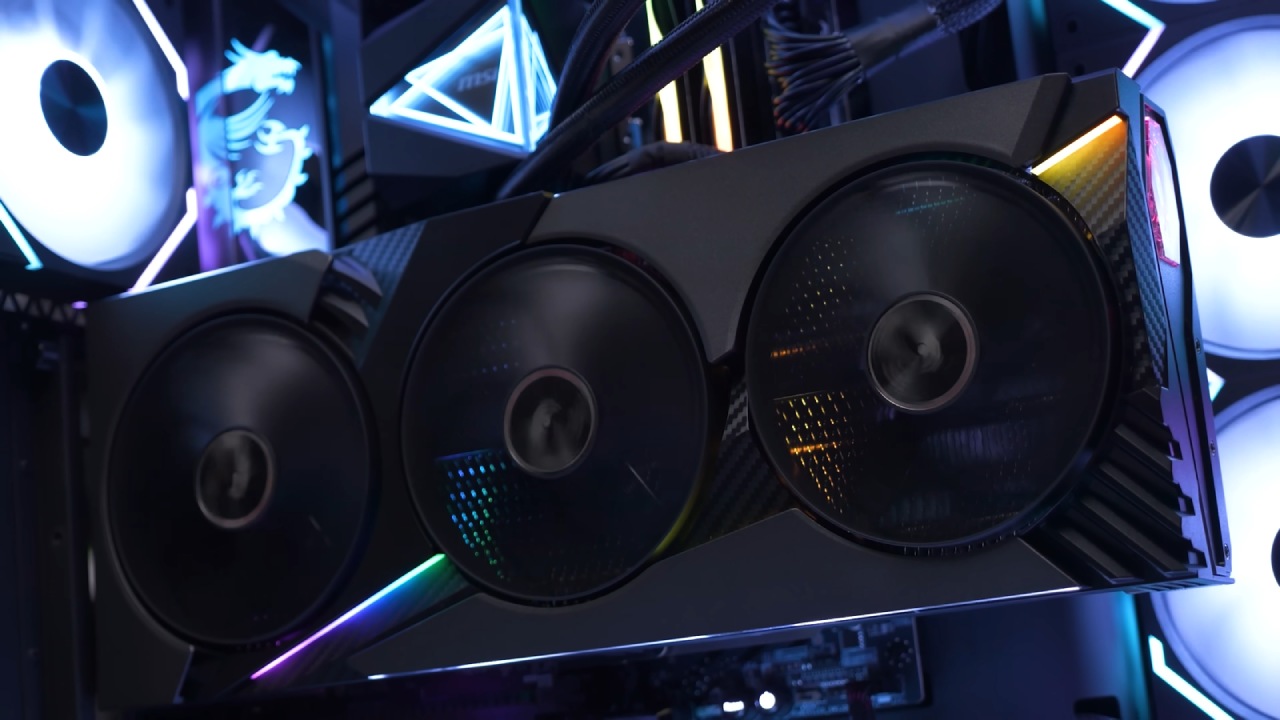
Since the restrictive side in this scenario is the CPU, the GPU can only perform as much as the CPU allows. For example, you might see a drop from 100fps to 85fps if your GPU gets bottlenecked. Although the term is most commonly associated with CPU and GPU interaction, bottlenecks can occur across all hardware components.
CPU and GPU Bottleneck
We can define the CPU and GPU bottleneck as the CPU not being able to sufficiently supply the GPU with data. For example, if we take the RTX 4090 paired with a Ryzen 5 5600, the RTX 4090 is far too powerful for that CPU. The Ryzen 5 5600 limits the RTX 4090's full potential, and performance will likely regress to RTX 5070 levels in practice.
When testing, we should either use benchmark modes or make the PC work really hard by making things go wrong.
The second point is picking a resolution. As the resolution goes up, the GPU load goes up, which makes it easier for the CPU to keep up. For instance, an RTX 4070 Ti Super and a Ryzen 5 5600 together can cause a big problem at 1080p. Further the GPU usage gets from 100%, the more efficiency is lost. In this example, we can talk about roughly a 30% performance loss.
Another possible scenario is seeing the CPU at around 75% and the GPU at 95–98%. In this case, we don’t see a bottleneck. The CPU balances the GPU with only 75% usage, meaning the PC is working as intended. However, a very common mistake is assuming that having the CPU at 100% is correct or ideal, like with the GPU.
If a game doesn’t require more CPU power, we can’t force it. In fact, a chart showing the CPU at 90% and the GPU at 100% can even indicate a potential bottleneck because it means the CPU is being pushed harder than normal just to keep up.
There is also a scenario that appears less often but can be confusing: CPU at 60% and GPU at 70%. We usually see this in esports titles. In these cases, the reason is not the hardware but the game itself. If everyone’s FPS values are very high, it means the game is optimized this way on purpose.
Since the PC doesn’t need more, it doesn’t utilize the hardware to the maximum. However, if FPS values are much lower than expected, other problems may be at play, such as in-game settings, drivers, or poor optimization. We should avoid indexing these numbers to 100%.
Factors Often Overlooked
Two serious points are often overlooked. One of them is the game being played. Not every game puts the same load on the CPU and GPU. Esports titles rely heavily on multi-core CPU usage, so their usage percentages are not reliable references for bottleneck analysis. To analyze bottlenecks correctly, we need to use AAA games known to load the CPU and GPU in a balanced way.
Red Dead Redemption 2, Cyberpunk 2077, and Alan Wake 2 are good examples. Tests done with these games will give the most accurate results. When testing, we should either use benchmark modes or make the PC work really hard by making things go wrong.
The second point is picking a resolution. As the resolution goes up, the GPU load goes up, which makes it easier for the CPU to keep up. For instance, an RTX 4070 Ti Super and a Ryzen 5 5600 together can cause a big problem at 1080p. However, at 1440p, this gap closes significantly both in FPS and usage percentages. If the goal is building a quad HD-focused gaming PC, there’s generally no need to worry, as most CPUs and GPUs work well together at this resolution.
Contrary to a popular belief, a CPU and GPU bottleneck does not damage the PC. It only prevents the GPU from reaching maximum performance. The situation affects the wallet, not the hardware. For instance, if we find an RTX 5080 priced similarly to an RTX 5070, the best move is to buy the RTX 5080 without caring about a bottleneck.
From a price-to-performance standpoint, we still win. This mistake is often seen in the secondhand market in places outside the US. If the RX 6800 XT and RX 6750 XT are similarly priced, skipping the RX 6800 XT just because the CPU is weaker is a mistake.
Unless we are buying an extremely expensive GPU for our CPU, we shouldn’t be overly concerned with bottlenecks. Most of the time, once the usage overlay is turned off, we won’t feel the difference at all.
PCI Express Bottleneck
The PCI Express topic is technical and detailed, but from a bottleneck perspective, it can be simplified. We can think of PCIe as a highway. Terms like Gen3, Gen4, and Gen5 represent speed limits, while x4, x8, and x16 represent the number of lanes.
The speed and lane count limit the maximum data transfer that components can reach. As PCIe generations increase, bandwidth increases. However, an incompatible or low PCIe version can prevent hardware from reaching theoretical speeds, creating a PCIe bottleneck.
Although PCIe is used by many parts, the main components affected are GPUs and M.2 NVMe SSDs. On the SSD side, this bottleneck is practically meaningless for average users because speeds over 1500MB/s are already more than enough for daily use. Differences above that level are only noticeable for production work, video processing, or heavy data transfer.
The PCIe issue matters more for GPUs but still doesn’t always create a serious problem. For example, the PCIe Gen4 x8 interface on the RTX 4060 received criticism, but the amount of data this GPU processes rarely exceeds the limit, so real-world performance is barely affected. Even on PCIe Gen3 x8, differences rarely exceed 5fps.
Situation becomes more critical with GPUs like the RTX 4060 Ti and above. For very powerful GPUs like the RTX 5090 and RTX 5080, PCIe Gen3 x16 can create bottlenecks in some games, but it is usually minor. For example, a scene rendering at 180fps on PCIe Gen4 or Gen5 might run at 170–175fps on PCIe Gen3.
We need to be careful when running a GPU at x8 instead of x16. Using x8 on Gen4 or Gen3 instead of Gen5 can create noticeable losses on powerful GPUs. There are exceptions, such as the RX 6400 and RX 6500 XT, which heavily restrict the PCIe bus by using a Gen4 x4 interface. Because this lane is extremely narrow, the performance difference between PCIe generations becomes much more visible.
In summary, PCIe 3.0 (except on x16) is slowly becoming outdated. PCIe 4.0 is the most ideal and widely used version today. If a PC has PCIe 4.0, we can feel assured that it won’t cause issues anytime soon. PCIe 5.0 is currently overkill for most users.
Final Thoughts
We have completed the two most frequently seen bottlenecks. If you have experienced a serious bottleneck before, it can be interesting to reflect on it. Whether the situation involved CPU and GPU imbalance or PCIe limitations, understanding these issues helps avoid unnecessary spending. Stay curious, stay experimental, and enjoy building and optimizing PCs.
Also, check our other NVIDIA articles below:
- NVIDIA GeForce RTX 5080 Review (2025): Still A 4K Gaming Powerhouse?
- NVIDIA RTX 5070 Review: Mid-Range Muscle or Marketing Hype?
- RTX 5070 Ti Review: Performance, Thermals & Power Efficiency Tested
- ASUS GeForce RTX 5090 LC Liquid Cooled GPU Review: Unmatched Silence & Speed
- MSI GeForce RTX 5090 32GB SUPRIM SOC Review: Power Efficiency, Cooling, and Gaming Performance
- INNO3D RTX 5060 Ti 16 GB X2 Review: Gaming Benchmarks, Temps, and Power Efficiency
- HP Omen 45L Review: RTX 5090 Performance, Thermals, and Value Analysis
- ASUS TUF Gaming GeForce RTX 5060 Ti Review: DLSS 4, Power Efficiency, and Gaming
- ASUS Prime RTX 5060 Ti OC 16GB Review: DLSS 4, Ray Tracing, & Thermals Tested
- NVIDIA GeForce RTX 5060 Review: Specs, Gaming, and Cost per Frame
- MSI GeForce RTX 5090 GAMING TRIO OC Review: A Monster Power GPU
Editor, NoobFeed
Gaming Hardware Updates
No Data.