
Red Dead Redemption on Steam Deck and Performance with XeSS and FSR4
A detailed breakdown of image quality, performance limits, and injected upscalers on Steam Deck hardware.
Hardware by Nahe Yan on Dec 30, 2025
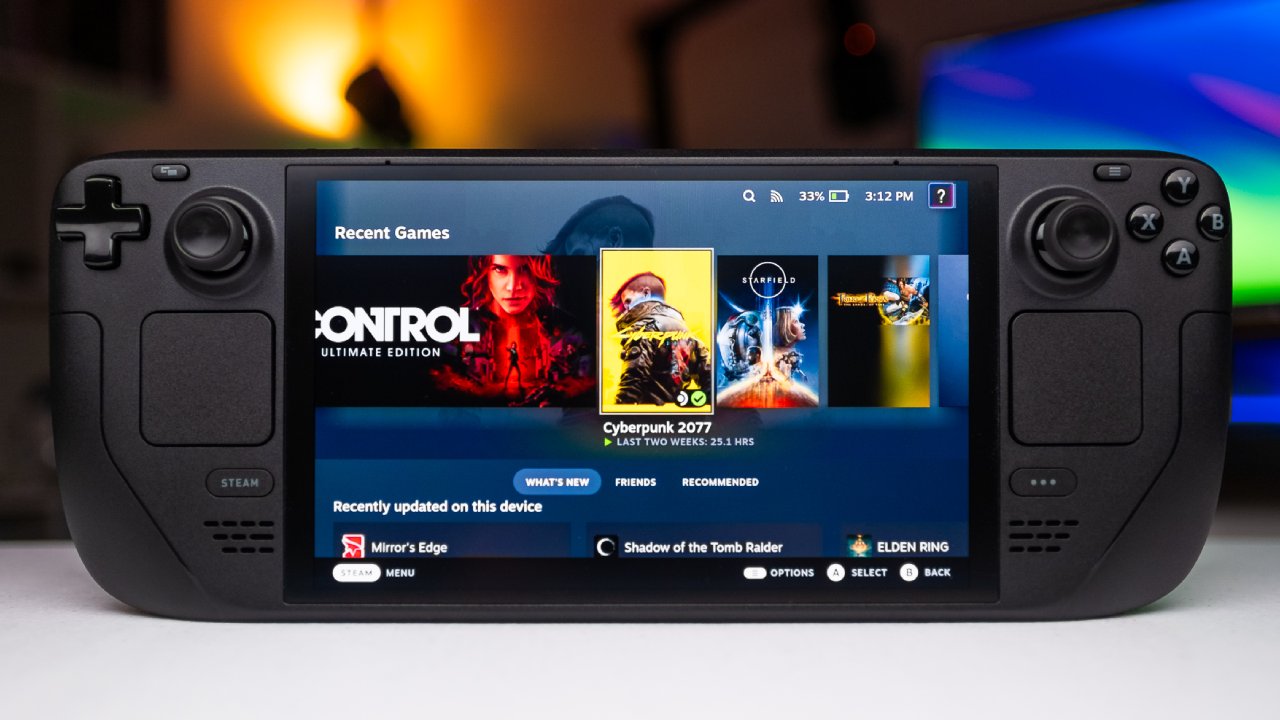
Red Dead Redemption is playable on Steam Deck, and the overall experience is good, though it has a few drawbacks. The Rockstar launcher is the major problem because it may require touch input during setup. You have to go through the launcher every time you start the game.
But you usually only have to log in the first time you play. You can still play the game offline, so the launcher doesn't make it unplayable, even though it adds extra steps and slows startup.
Why Use Custom Upscalers
The default anti-aliasing and upscaling settings in the game aren't great, especially on a handheld device where image stability is important. We used the Decky Frame Gen plugin to install OptiScaler, which improved image quality. To do this, you need to install Decky, download the plugin, copy the patch command, and paste it into the game's start settings. Once you have it set up, we suggest mapping the Insert key to a back key, such as R5, so you can easily access the OptiScaler menu while playing.
Comparing Performance and Image Quality
We looked at four different rendering methods: FXAA, FSR3, FSR4, and XESS. FSR4 and XESS are added to the game using OptiScaler, while FXAA and FSR3 are already in the game. We ran all tests at their native resolutions and set sharpness to 0.4 for consistency.
FXAA had the best performance, averaging 76 fps. Still, the images were quite unstable, especially along straight lines like power cables. With approximately 61 fps, XESS comes in at the middle of the pack. It kept more information than FSR3 and had a lower performance hit than FSR4.
FXAA broke quickly when things moved, FSR3 lost fine textures, and XESS showed some instability at high-contrast edges. FSR4 did a better job with contrast, but it wasn't ideal. These abnormalities are less evident on the Steam Deck's 7-inch screen, making XESS a good balance between performance and clarity.
Suggested Upscaler Choice
XESS is the best choice for general play. FXAA is not a good choice because it is unstable, and FSR3 is too soft. FSR4 looks the prettiest, but it costs a lot of performance. XESS gives you a clearer picture than FSR3 while still performing similarly, making it a good choice for playing games on the Steam Deck all the time.
Settings for the Best Performance
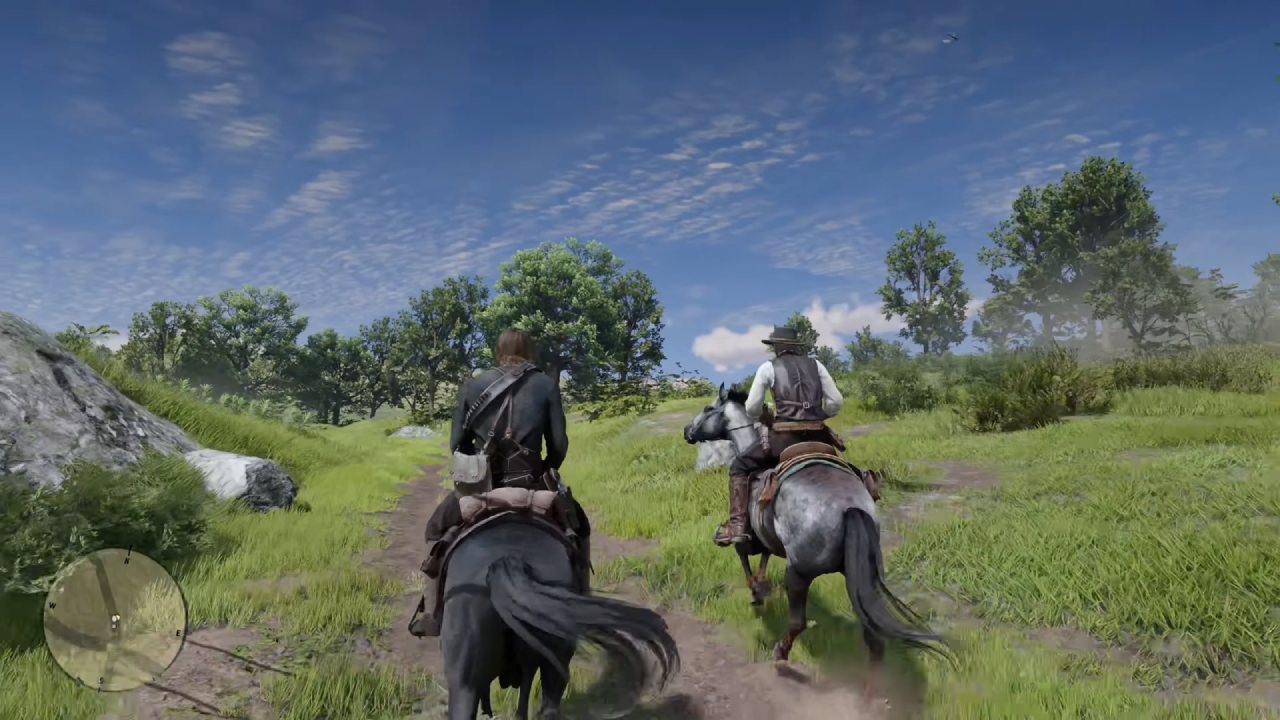
In the game, we suggest running at 8:00 p.m. with a frame rate limit of 60. You can enable HDR on the OLED model if you want. Set the shadow quality to Medium, the shadow softness to Low, and the shadow blending to Smooth. You should turn on DLSS and choose Quality since this is how OptiScaler adds additional upscalers. You can turn on dynamic resolution, but it changes a lot, so a fixed Quality option is more consistent.
It's preferable to turn off motion blur. To minimize CPU strain, lower the terrain and geometry detail a bit, especially in towns. You can set the tree level of detail just below the highest level, the tree draw distance to about 50%, and the grass level of detail to the lowest level. This grass setting works like it does on consoles and provides enough coverage without slowing the game down.
How to Use OptiScaler in a Game
When you press the mapped Insert key after launching, OptiScaler opens. Choose XESS from here and then click "Apply." The optimal range for manual sharpening is 0.25-0.3. When the settings are higher, the image is too crisp. You can use motion-adaptive sharpness, but some combinations can cause the screen to go black when you relaunch the game. Once the options are set, saving the ini file and resuming the game makes sure it stays stable.
XESS can make high-contrast edges, such as character silhouettes against the sky, appear to have a halo. This is hard to see on the portable screen and is usually not evident when you play normally.
CPU Bottlenecks and the Distance of View
The biggest problem with the Steam Deck's speed is that the CPU can't handle entering towns, especially in early locations like McFarlane's Ranch. When CPU utilization increases, the GPU clocks drop below 900MHz, resulting in a frame rate in the mid-50s or lower. Lowering the draw distance helps keep the CPU load down and makes it easier to ride a horse. This tradeoff makes things more consistent without having a big effect on visual Quality.
How Well you Do in Blackwater and Undead Nightmare
Blackwater has always used a lot of CPU power in the game. Even on older versions of the system, performance decreases were regular. Locking the frame rate and decreasing the draw distance help keep things stable here.
The way Undead Nightmare works is different. It uses more of the GPU due to effects and the number of enemies, but less of the CPU because there are fewer active systems, such as shops and crowds. As a result, performance is usually more stable than in the standard game.
Creating Frames on the Steam Deck
You can enable frame generation in OptiScaler by using DLSS hooks to enable FSR frame generation. You need to turn off the frame limit in the game, turn on Reflex low latency, and turn on frame generation to make it work. The base frame rate is 50-60 fps; however, frame generation can boost the output to roughly 140 fps.
You can tell that there is some input lag, but it's not too bad. The game doesn't feel unresponsive because the base frame rate is already high. This option works best when you start with a good base frame rate rather than a very low one.
Settings for Quality at 40 FPS
Targeting 40 fps delivers better picture quality. You can set most settings close to their highest level, but shadow quality should be set to High instead of Ultra. The cleanest image is when FSR4 is injected at its natural resolution. You can use motion-adaptive sharpness judiciously, but avoid contrast override and manual sharpening to avoid black screens.
In CPU-heavy areas like Blackwater, there may still be occasional dips. Still, overall stability is good with a 40 fps cap. Depending on the conditions, OLED versions last about 2.5 hours on these settings, while LCD models last less.
Minor Problems and Visual Behavior
When you don't use Ultra shadows, some shadow behavior changes, like candles not casting shadows at certain distances. Ultra shadows fix this; however, they are really slow. If you enable incompatible OptiScaler parameters, you might see the sky flicker and experience black screens from time to time. To fix this, you might have to turn off the mod, reset the upscaler options, and carefully reapply the settings.
Final Thoughts
Red Dead Redemption on Steam Deck has great graphics and performance thanks to the inserted upscalers. XESS gives you the best balance, and FSR4 is good for people who care more about image quality than frame rate. It's important to reduce draw distance in CPU-intensive areas, such as towns. The game runs well, looks good on the handheld display, and remains playable for a long time if you set it up correctly.
Also, check our other articles below :
- ASUS ROG Ally X Handheld Review: Double the Battery, Double the Comfort
- Nintendo Switch 2 Vs. Original Switch 1: A Full Comparison
- How To Connect A Camera And Join Voice Chat With Nintendo Switch 2
- Nintendo Switch 2 Review: Handheld Performance, Features & Value Breakdown
- ROG Xbox Ally X Vs. ROG Ally X: Display, Battery & Controls
- ASUS ROG Ally X vs. Steam Deck OLED: Display, Battery & Gaming Benchmarks
- MSI Claw 8 AI+ Review: Display, Controls & Gaming
- Nintendo Switch 2 vs. Steam Deck OLED: Gaming, Performance, Battery, Display and Value
- PlayStation Portal Review: Remote Play, Cloud Streaming & Travel Gaming
- PlayStation Portal vs. Lenovo Legion Go: Best Portable Gameplay
- Cyberpunk 2077 Patch 2.3 FPS Test on MSI Claw 8 AI+
Editor, NoobFeed
Gaming Hardware Updates
No Data.