
On-Together: Virtual Co-Working Guide | Custom Name and Chat Color Guide
Here's a simple guide on how to customize your name and chat color
Game Guide by Subaiyta Jahan on Jan 29, 2026
The game allows color formatting through simple text tags. When it is used correctly, these tags can change how names, chat messages, and other text appear. Some parts of the system automatically add colors, so the order of the tags matters.
How the Color System Functions
TextMeshPro, which allows rich text tags, is used in the game. These tags control the text's appearance. A closing tag follows a color tag that begins with a hex color code. The hex code decides the color. The opening tag starts the color, and the closing tag stops it.
These tags can be used in many places, such as chat messages and the ID Card name field. Once a tag is written correctly, the game applies it right away. After that, removing it can be tricky.
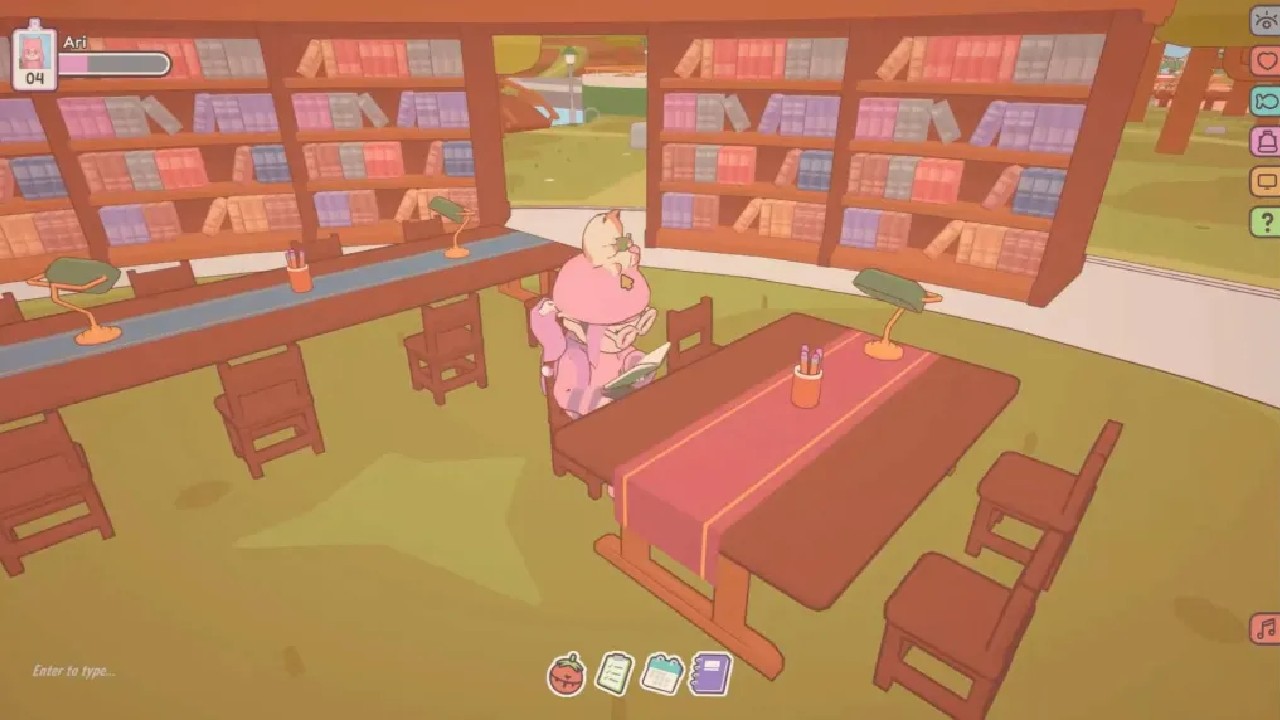
Changing the Name Color
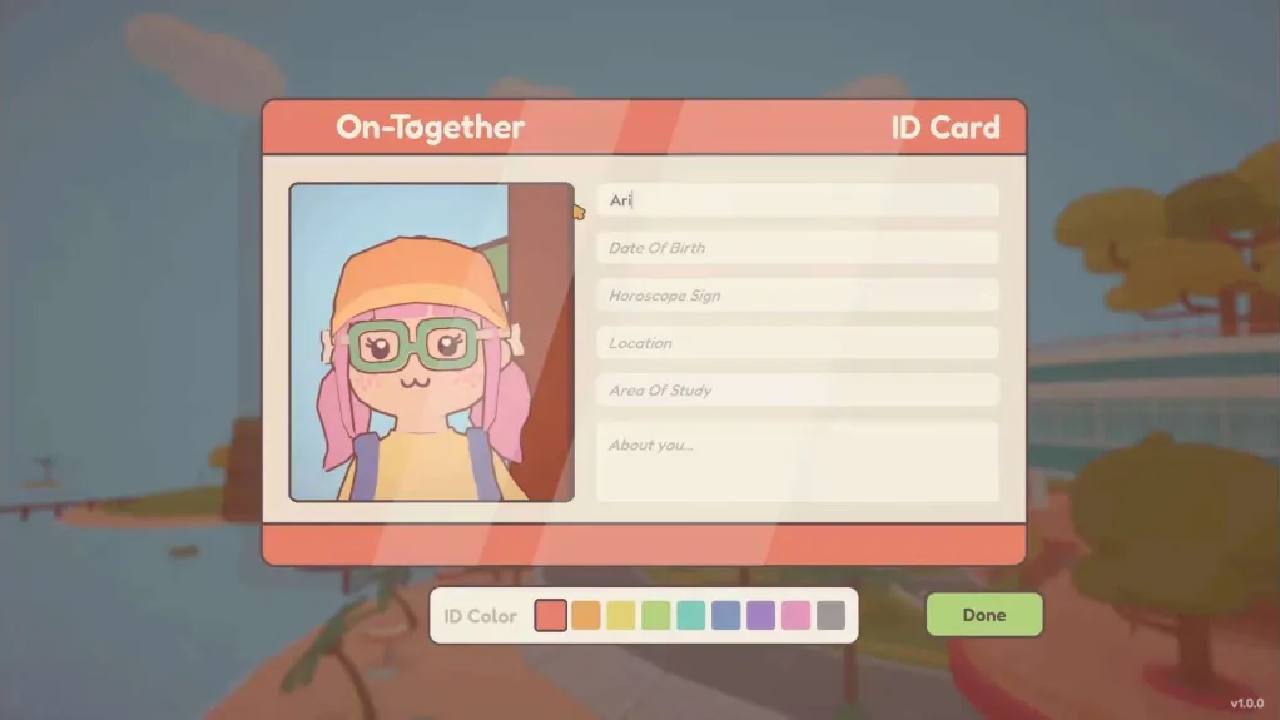
To change the name color, open the ID Card and edit the name field. The name field has a 40-character limit. Color tags use up some of that space so that fewer letters can be shown.
It is safer to write the formatted name in a text editor and then paste it into the game. Typing directly in the game can cause problems. Once the game reads a full tag, it cannot be deleted using backspace. To clear the field, select all text and delete it at once.
After pasting the colored name, the name will appear in the chosen color. At this stage, the chat may still show part of the old random color.
Why the Colon Keeps the Old Color
The game gives each name a random color in chat. This color also affects the colon after the name. When a new color tag is added, the game does not remove the old one. Instead, it places the new tag inside the old one.
As a result, the random color still reaches the colon. To fix this, the old color must be closed first. A closing color tag is added before the new color tag. The extra closing tag from the name can be removed because the game already adds one later.
To choose a color, use a color picker and copy the hex code.
Using More Than One Color in a Name
More than one color can be used by applying a color tag to each letter. This allows different colors across the name. However, this method uses many characters.
Because of the name length limit, this usually does not fit in the normal name field. For longer formats, another method is needed.
Removing the Character Limit
The character limit can be bypassed by editing the PlayerData.txt file. This file stores player details, including the name.
The game must be closed before editing this file. A backup should always be made first. The name value must stay inside quotation marks, and the file format must not be changed.
The file location depends on the operating system. After saving the changes and starting the game again, the longer name will appear without being cut off.
Creating Gradient Colors
Gradient colors are made by coloring each letter with a different hex value. Each letter uses its own color tag. When placed in order, the colors shift across the name.
Matching color selection can be made easier by color palette tools. Letters are added one at a time to these values. When changing the name through the data file, this approach works the best.
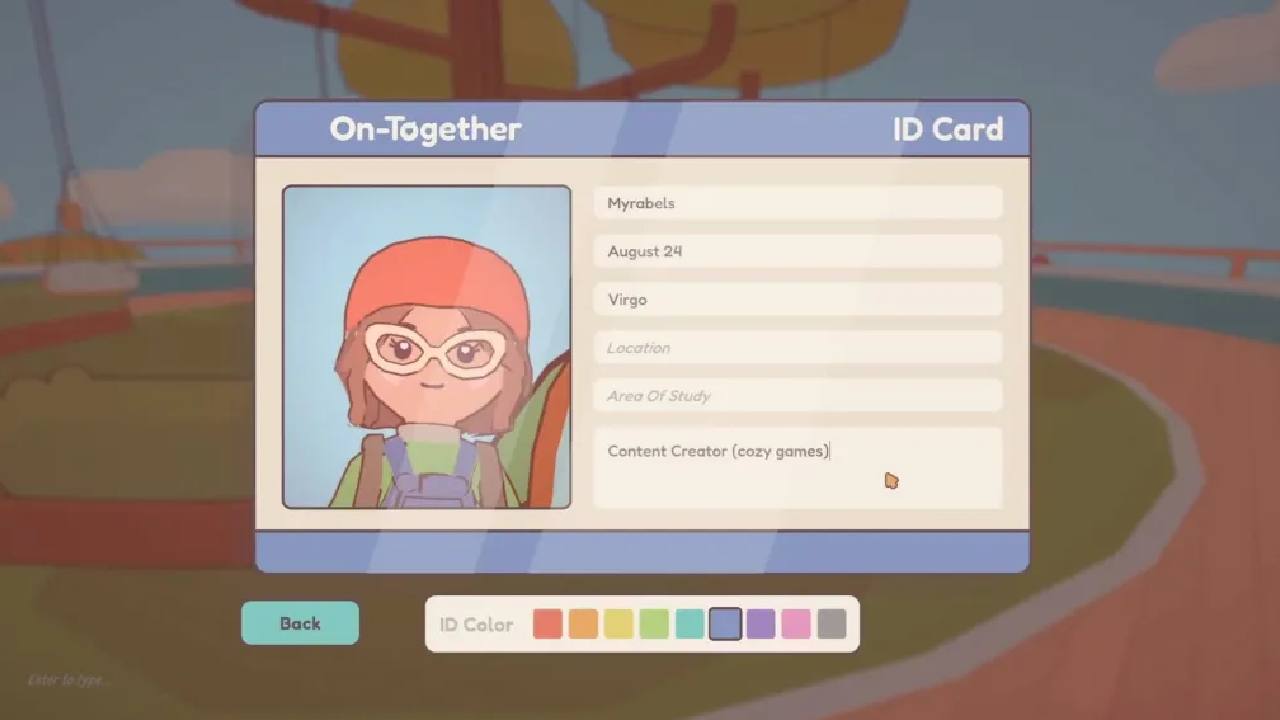
Modifying the Color of a Chat Message
Additional attention is needed when changing the color of the message. At the end of a name, color tags are automatically closed by the game. The last-open, first-close rule applies to rich text.
A color tag needs to remain open after the colon for you to color the message text. The colon then stays its proper color by using a different color tag. The name, colon, and message all appear exactly how you want when done correctly.
Formatting Other Text Boxes
Other text areas, such as info boxes, do not need the same steps. A normal color tag can be added at the start of the text. Ending the tag is recommended to avoid display issues, even if the game sometimes handles it on its own.
Using Quotation Marks in Data Files
When color tags include quotation marks inside PlayerData.txt, the quotes must be escaped with a backslash. If this is not done, the file breaks, and the game restores a backup.
Using proper escaping keeps the file safe and prevents errors.
Also, check our other guides below:
Contributor, NoobFeed
Latest Articles
No Data.