
FC 26 Guide | Best Competitive Camera and Control Settings
Here's a guide for the best Competitive Camera and Control Settings for FC 26.
Game Guide by Navid Kabbo on Jul 16, 2026
FC 26 is arriving with some big changes; you’ll want to make sure that you get the best setups. But finding the best competitive settings won't instantly improve your gameplay, but they can make sure your controls feel more responsive and help you play more consistently.
In FC 26, EA has completely separated online and offline gameplay; understanding them can help you in your gameplay. The goal is to reduce unwanted assistance while keeping enough control during online matches in Ultimate Team, Clubs, Division Rivals, and Champions.
Best Controller Settings
First, make sure your FC 26 controller setup is properly configured. This year, EA added some new features to make sure you are aware of some of them. You have four standard control presets, and these can be accessed in the ‘Customize Control’ tab. Presets are,
- Classic
- Alternate
- Two Buttons
- One Button
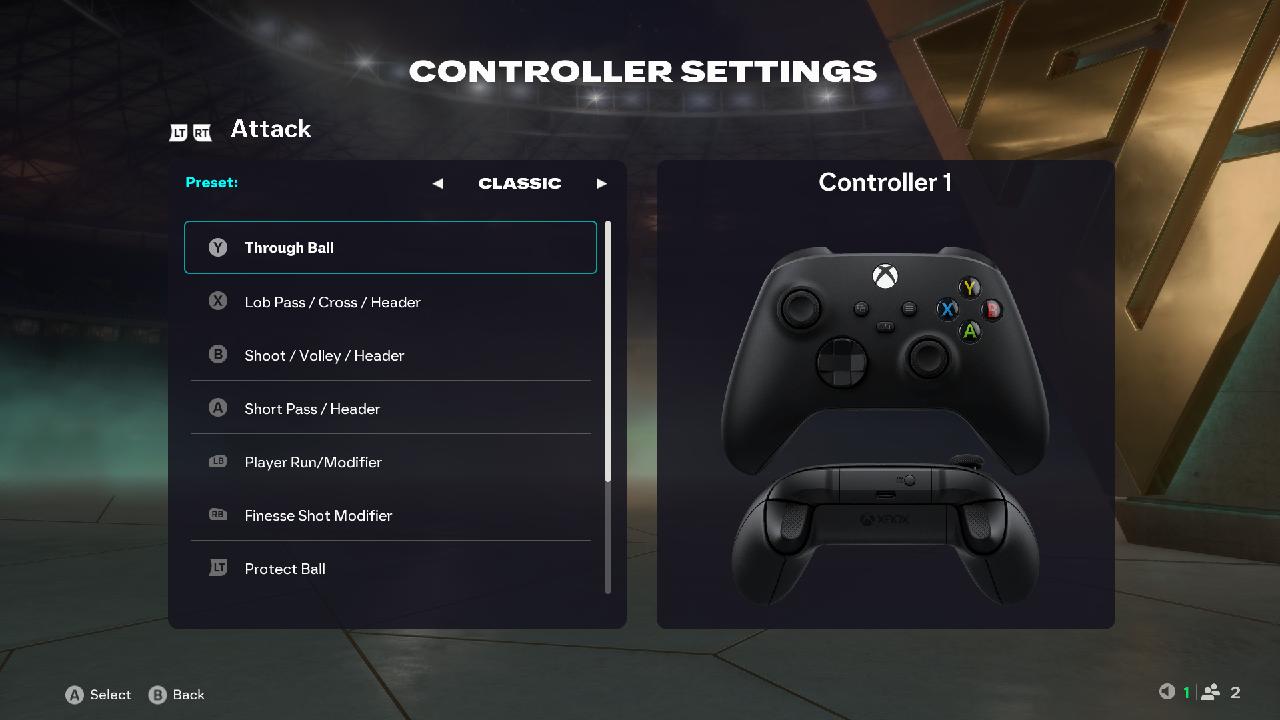
Competitive Presets:
Always make sure to use a competitive preset for online game modes. It provides settings designed for head-to-head play and offers a more consistent experience than the authentic preset.
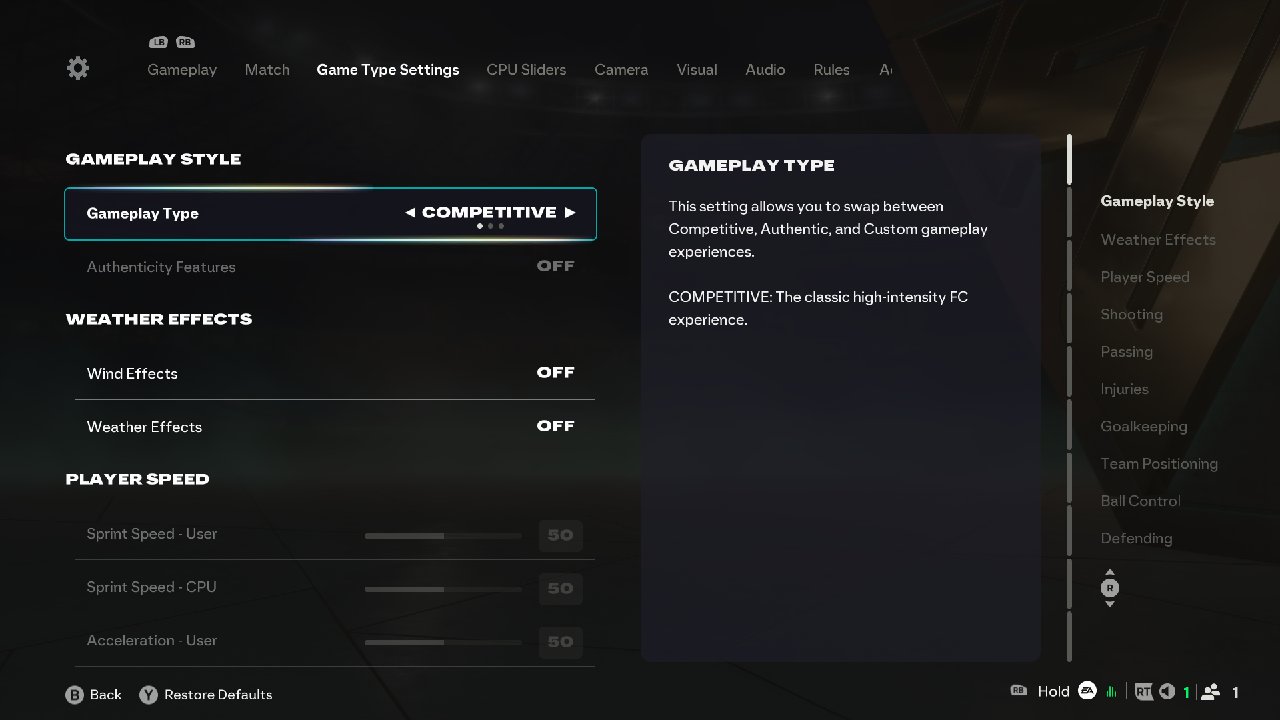
Passing Settings:
- Through Pass Assistance - Semi
- Lob pass Assistance - Assisted
- Ground pass Assistance – Assisted
- Cross Assistance - Assisted
Shooting Settings:
- Shot assistance - Precision
- Timed finishing - On
Defending Settings:
- Auto switching - Air balls and loose balls
- Auto switching move assistance - Low
- Jockey - Assisted
- Clearance - Directional
Player Switching Settings:
- Right stick switching - Player Relative
- Right stick switching sensitivity – 4-6
- Next player switch indicator – On
Dribbling:
- Contextual Agile Dribbling – Off
Trainer:
- Trainer – Hide
These settings allow you to stay in control overall and provide you with better control in passing, shooting, and defending, allowing you to score goals and pass and defend and switch players easily under pressure, and prevent unwanted player movement while dribbling under pressure and transitions.
Best Camera Settings
Your camera settings affect how much of the pitch you can see and how much you can view overall. A wider view makes it easier to spot attacking runs, transition play, and track your opponent's movements.
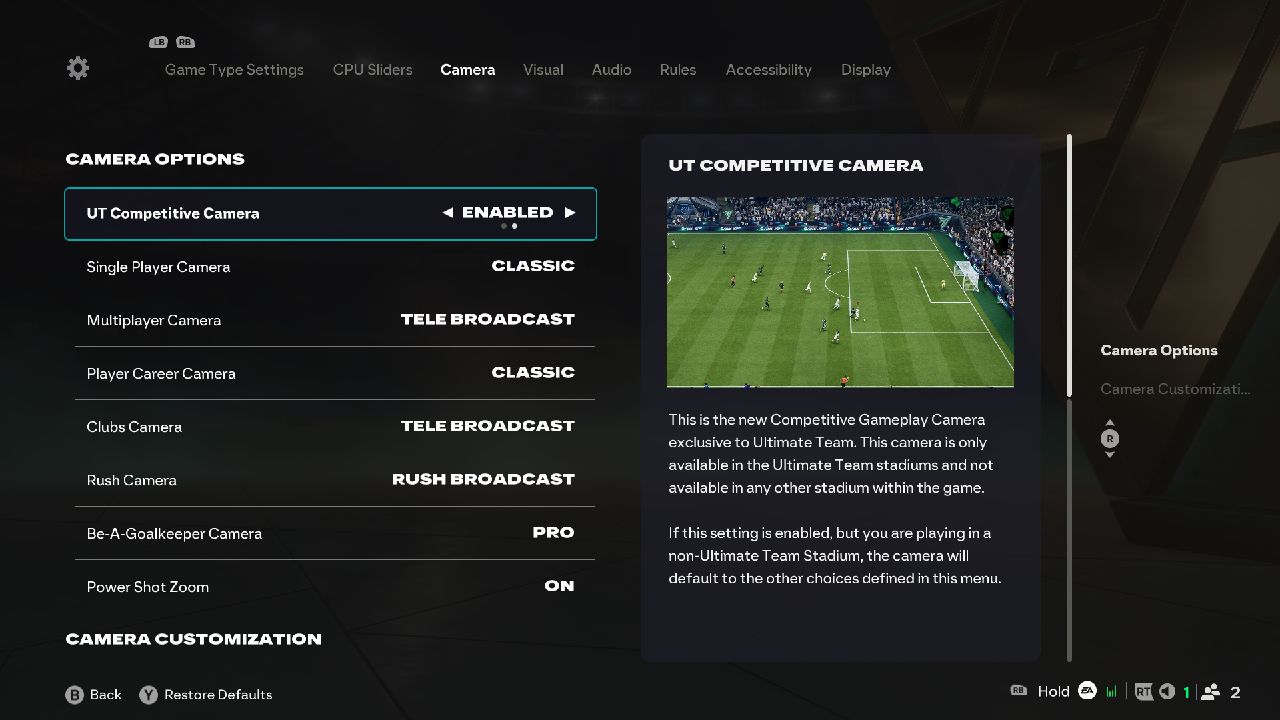
There are over 10 distinct camera presets, but the most popular among competitive players is TeleBroadcast. Also, some of the pro players use the Classic single-player camera or the new Tactical camera preset.
Camera Settings
- Height – 10
- Zoom – 0
- Camera swing - 0
A higher camera height with minimal zoom lets you see more of the pitch, making it easier to identify passing lanes and gaps. If you prefer an even wider view, you can try the Ultimate Team Competitive Camera, which is designed specifically for online play.
Aside from the new camera setting, the top camera setting remains unchanged from last year's game. In truth, camera settings come down to personal preferences and what works for you.
You can personalize the camera settings in the camera settings tab, which allows you to adjust everything from height to zoom, and make yourself comfortable with the game.
Also, check our FC 26 Review and other guides below:
- FC 26 Guide | How to Get Started with Settings, Modes and Controls
- FC 26 Guide | Best Formations and Custom Tactics for Ultimate Team
- FC 26 Guide | How to Unlock Transfer Market in Ultimate Team
- FC 26 Guide | Earn Coins Fast Without Buying FC Points in Ultimate Team
- FC 26 Guide | How to Perform Skill Moves
Editor, NoobFeed
Latest Articles
No Data.